Start here · 12 minute read
Your first practice walkthrough
Create a draft, read every important field, and learn how to follow an optional simulated order to its result.
Start with review, then decide whether to submit
Begin after checking AI access and the account destination. Complete the draft-and-review steps first. The simulated-order part is optional. For a live destination, complete only review; choosing another destination is a separate decision.
The example below is fictional and teaches field meanings. Do not copy its prices into a current-market plan. A usable current-market draft needs a connected AI model and current data. If Models & Credits shows Local Demo, Chat writes a plan outline but does not save a plan card; you can still learn every field from the fictional example in step 2, and connect a model in Settings → Models & Credits when you want the full flow.
- Check account destinations first →
- Open Broker Accounts (in the desktop app)
1. Ask for a draft in Chat
Before you start: Confirm Local is selected and check Settings → Models & Credits. If you have Local Demo, use the fictional example below; an outline is not a saved plan card.
Open Chat and replace the placeholder with the actual symbol you want to learn about. A symbol is the short code identifying an investment. This prompt saves a plan for your review and asks Chat not to approve or send it.
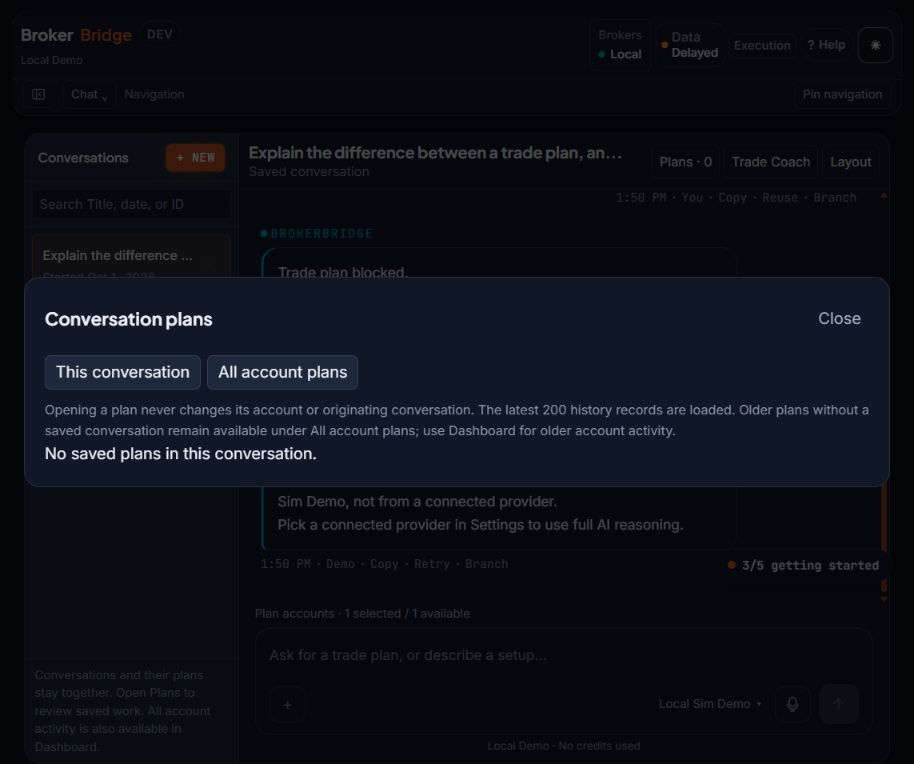
- Open Plans beside the conversation heading to see this panel. Older layouts may call the list Recent trade plans.
- This conversation filters to the current chat; All account plans widens the list.
- No saved plans is normal before a card has been created. An explanation or Local Demo outline is not a saved draft.
Replace [symbol] before sending
Keep the sentence “Do not approve or execute it.” If you write “do not place any order” instead, Chat explains the trade but does not save a plan.
You should see: A plan card in the reply, or a clear explanation of what is missing.
If you get stuck: If you received only an explanation and no card, nothing was saved. Send: “Save that as a draft trade plan for my review. Do not approve or execute it.” Resolve any stated limitation.
Find the saved plan
Look for the plan card in the Chat reply and expand it if it is compact. The same plan is listed in Chat through the Plans button and in Dashboard under Trade Plans.
You should see: Identifiable terms and a status such as Pending.
If you get stuck: AI Playbook → Pending Plans is a different list, for plans your playbooks create; it opens after you have built a playbook. An attractive trade description alone is not a saved plan or a confirmed fill.
- Open Chat (in the desktop app)
- Open Dashboard (in the desktop app)
2. Read a fictional plan in dollars
Before you start: Read only. EXAMPLE is an invented teaching name, not an investment to look up or a command to paste into Chat. All prices and outcomes in this example are invented.
Here the planned gain is twice the planned loss, often written 2:1. That ratio says nothing about how likely either outcome is. Fees and unfavorable execution prices reduce results. A price gap or a stop that executes at a worse price can make the actual loss exceed $20. The planned loss is not a guaranteed maximum loss.
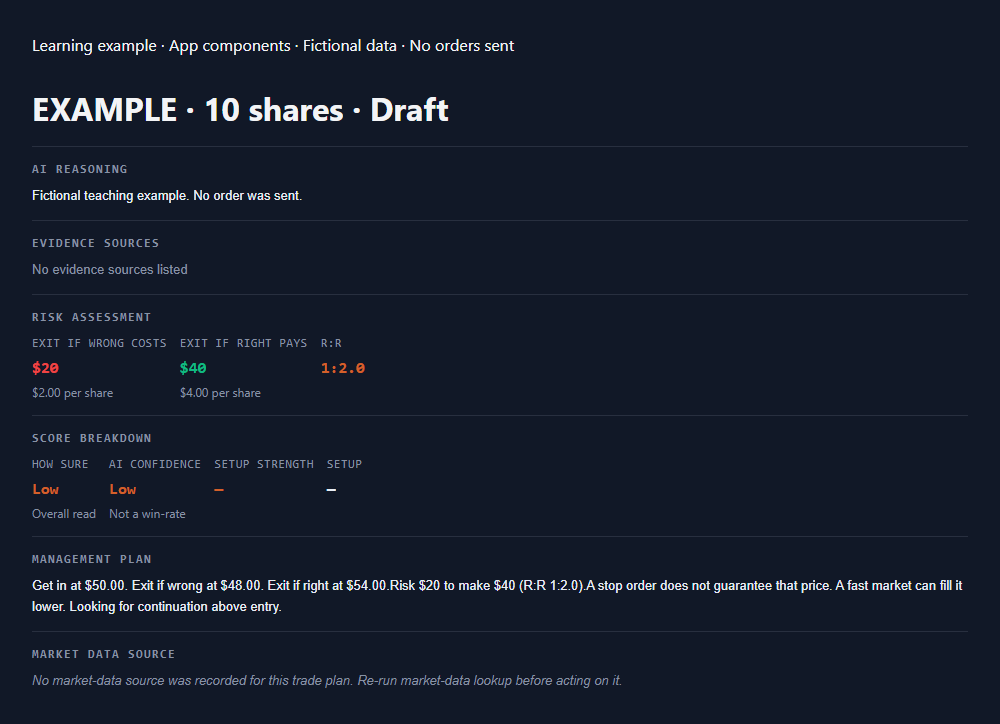
- Risk assessment: Exit if wrong costs $20; Exit if right pays $40. These are planned amounts before costs, not guaranteed outcomes.
- Management Plan: the assumed entry is $50, exit if wrong $48, and target $54. Written levels do not prove protective orders exist.
- R:R 1:2.0 reads risk to reward. It means the same planned relationship as gain to loss of 2:1; neither ratio shows the chance of winning.
- Market Data Source: this fictional example has no current market data. Do not act on its prices.
| Example field | Fictional value | Plain meaning |
|---|---|---|
| Investment | EXAMPLE (fictional stock) | The same invented stock appears throughout this walkthrough. |
| Direction and quantity | Buy 10 shares | Acquire ten units of the stock if the order fills. |
| Entry | $50 per share | The assumed purchase price for this illustration. |
| Exit if wrong | $48 per share | The planned loss-control exit level. |
| Target | $54 per share | The planned profit-taking level. |
| Position value | $500 | 10 shares × $50; this is the amount invested in the example. |
| Planned loss to exit | $20 before costs | 10 × ($50 − $48); this assumes both prices are actually obtained. |
| Planned gain to target | $40 before costs | 10 × ($54 − $50); reaching that target is uncertain. |
Follow EXAMPLE from draft to a journal note
Before you start: This is a reading exercise. Do not submit these fictional prices. No corresponding order, holding, or journal record exists in your account.
Keep the same plan in mind: EXAMPLE, 10 shares, entry $50, stop $48, target $54. The following events are assumed solely to teach the difference between a plan, an order, and a holding.
Draft: describe a possible purchase
The plan describes buying 10 shares. The assumed position value would be $500, and the planned loss to $48 would be $20 before costs.
You should see: A draft describes intended terms. It proves neither submission nor ownership.
If you get stuck: If you only read this example, there is no saved card to find. A Chat explanation also may not create a card.
Order: imagine a limit order is accepted
Suppose an order to buy 10 shares at a $50 limit is accepted and has filled zero shares. It is still waiting; a limit is a price condition, not a guarantee of a fill.
You should see: In this scenario: requested 10, filled 0, remaining 10; no holding from this order.
If you get stuck: A submitted or working message is not proof that you own 10 shares. Check the filled quantity.
Holding: imagine all 10 shares fill at $50
Now the assumed fill creates a holding of 10 shares. In an actual account, match account, investment, quantity and fill price, then check whether protective exits are working.
You should see: In this scenario: filled 10, remaining entry quantity 0, holding 10. The $500 position value is different from the $20 planned loss.
If you get stuck: A stop written in the draft is not evidence that a protective order is working. Missing protection needs attention.
Closed trade: imagine the exit fills at $54
Suppose all 10 shares sell at $54. The illustrative gain is 10 × ($54 − $50) = $40 before costs. If they instead sell at $48, the illustrative loss is $20 before costs; actual execution can be worse.
You should see: A confirmed full exit leaves zero shares from this holding. In a real workflow, confirm the result and check any remaining related orders before reviewing Journal.
If you get stuck: A close request is another order. Until its fills are confirmed, the holding may still exist.
Journal: explain the evidence in your own words
Write a practice note outside the trade records: “I planned 10 shares, distinguished a working order from a fill, checked the holding, and confirmed the exit.” After an actual completed simulated trade, use Journal with the matching account and dates.
You should see: You can describe what each stage proves. This fictional exercise does not create a Journal entry.
If you get stuck: If an actual closed trade is missing, check account, dates and coverage before resubmitting anything.
Alternate ending: cancel before a fill
Return to the fictional working entry: requested 10 shares, filled 0, remaining 10. Suppose cancellation is confirmed while the filled quantity is still zero. Nothing was bought by this order, so there is no holding to close and no completed trade from it to review.
If 4 shares had already filled before cancellation, the result would be different: canceling the remaining 6 leaves a holding of 4. Those 4 shares still need attention. A cancellation request alone does not prove the remainder was canceled.
| What happened | What remains | What to verify |
|---|---|---|
| No fill; cancellation confirmed | 0 shares from this order | Final order status and filled quantity 0. |
| 4 filled; remaining 6 canceled | A holding of 4 shares | The holding, protective exits, and final order remainder. |
| Cancellation result unknown | Outcome uncertain | Reconcile orders and positions before submitting anything again. |
3. Explain your own draft before taking action
- Name the exact investment and product type. Shares, option contracts, and futures contracts have different meanings and sizing.
- Name the direction and quantity. Buying an existing position's exit or selling to open something new can have very different effects; read the stated action.
- Point to the entry, exit if wrong, and target. Ask what event makes the original idea no longer valid.
- Read the selected destination on this specific plan and any confirmation. It must match the account you intend to use.
- Check the data age, the planned dollar risk, and all warnings. Stop at a missing value or unfamiliar warning and ask for an explanation.
- Decide whether to keep the draft, decline it, or continue learning. Declining a plan is a complete and useful outcome.
4. Optional: follow a simulated order
Before you start: Optional account action. Complete the reading exercise first; confirm Local and use current verified terms, never the fictional EXAMPLE prices. Submission can create a simulated order.
Continue only if you chose and verified a local or broker paper/simulated destination and want to submit. Review is already a complete exercise. Do not type LIVE for this lesson.
Send the practice order
Recheck the terms and destination. On the plan card choose Approve or Review / Edit. The order is sent when you choose Submit Order, or Approve & Submit, which does both in one step. If you see Confirm Approval instead, approval is recorded but no order is sent yet. Read the note beside each button before you choose it.
You should see: Approval, submission, a working order, a fill, or a specific refusal.
If you get stuck: Review rule failures; do not widen limits to finish the lesson. On IBKR Paper, a refusal that mentions read-only access means Read-Only API is still on in the IBKR application.
Follow the order evidence
Check the plan's status in Chat → Plans, and the holding in Dashboard → Open Positions. For broker simulation, compare the broker's orders and positions. Ownership requires a confirmed fill.
You should see: You distinguish a waiting order from an actual holding.
If you get stuck: Inspect unknown outcomes before retrying; another request can create another order.
Close the practice position
Open Dashboard → Open Positions, expand the holding's row, and choose Close Position. Read the confirmation. A close is also an order, so wait until the quantity is no longer held.
You should see: The holding is gone and its related orders are no longer working.
If you get stuck: Exit Pending means the close is still working. Do not send a second close; check its status first.
Find the result in Journal
After the close is confirmed, select the same account and dates in Journal. Inspect Ledger and Review; record your intention, result, and lesson.
You should see: A note tied to the correct account's evidence.
If you get stuck: Open positions do not appear as completed trades. Check Dashboard and filters.
Continue in the website manual
These online references extend this lesson with existing setup instructions and technical detail. They need an internet connection. The downloadable guide keeps all beginner lessons available offline.
Check your understanding
Practice questions only. Answers do not change accounts, orders, or permissions.