Use BrokerBridge · 7 minute read
Follow orders, positions, and exits
Tell approval from submission and a fill, distinguish cancelling from closing, and handle uncertain outcomes.
What each stage actually proves
Local fills are simulated inside BrokerBridge. Broker paper/simulated fills come from the connected broker's simulation. Live broker fills are real executions. The same word “filled” does not make those evidence sources interchangeable.
Read the transcript
- Recorded Local test only: Chat reports a simulated fill. An explicit trade-now request can act without another approval click.
- Dashboard now counts one open position. Confirm the same account, then scroll down to inspect the holding quantity and exit orders.
- The close panel shows Local as the execution destination. Quantity 1 requests closing this one-share holding. Verify the result afterward.
- After the confirmed close, Dashboard shows zero open positions and realized P&L of minus 39 cents. These are historical simulated values.
- Journal Ledger shows entry, exit and P&L on the completed row. The separate submitted-order row is not a second completed trade.
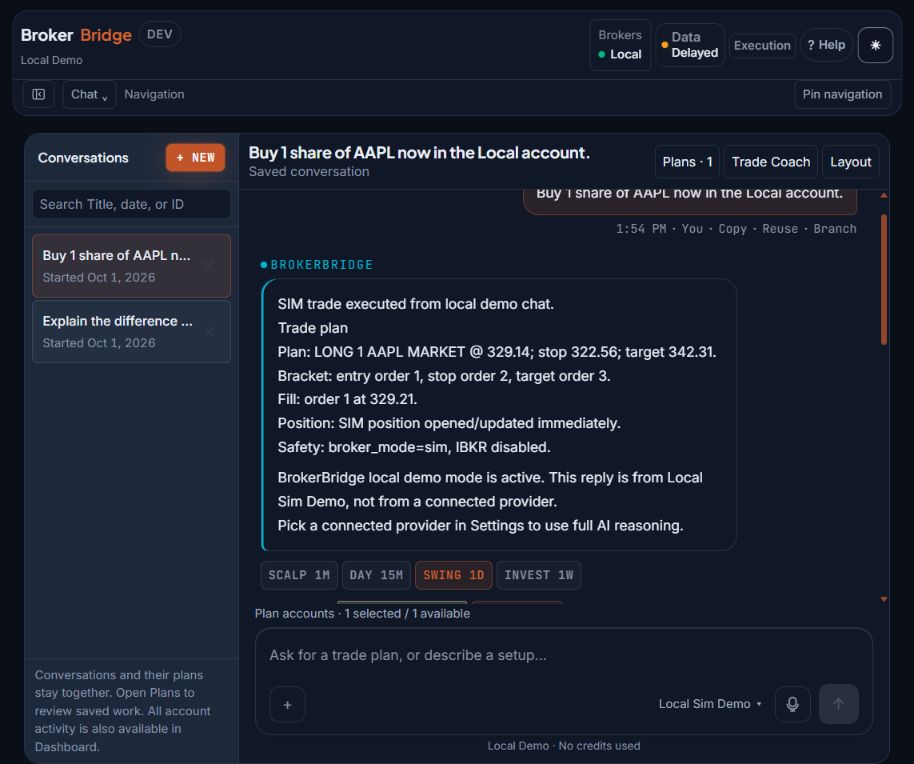
- This capture used one AAPL share solely to demonstrate Local behavior. It is separate from the fictional EXAMPLE prices used to teach arithmetic.
- The response reports an entry order and a fill. Inspect the saved status and account, then verify the holding in Dashboard.
- The displayed prices are historical and the data source is delayed. Do not copy this captured request as a current trading instruction.
| Stage or message | Meaning | What to check next |
|---|---|---|
| Draft or Pending | A plan exists for review; this alone is not an order. | Terms, destination, data, and any missing details. |
| You approved it | Approval was recorded. The action may also begin submission or watching a condition. | The submission result or waiting condition. |
| Sending or queued | The app is attempting or preparing submission. | A definite acceptance, refusal, or reconciliation result. |
| Order placed or working | An order was submitted or is waiting at the destination. It may remain unfilled. | Filled quantity, remaining quantity, and the destination's status. |
| Partially filled | Some of the requested quantity traded. The remainder may still be working. | Both the actual holding and the remaining order. |
| Confirmed fill | The relevant execution source reports a completed purchase or sale. | Actual fill price, quantity, account, and protective exits. |
| Cancelled | A cancellation was confirmed for the specified order. | Whether any part filled before cancellation and whether a position remains. |
| Didn't go through | Submission failed or was refused. | The reason shown. Check orders and holdings before trying again. |
| You said no, or Expired | The plan was declined or not approved in time. Nothing was sent from it. | Nothing, unless you want a new draft. |
| Needs a market data subscription from Interactive Brokers | The plan was saved, but your IBKR account does not receive prices for this symbol. | The market data subscription in your IBKR account, or a different symbol. |
| Unknown, reconciling, or Held for review | The outcome needs confirmation. | Existing orders and holdings before any retry. |
Find and inspect a holding
Before you start: Use the same account as the order you are checking. A draft or an unfilled order may leave this list empty.
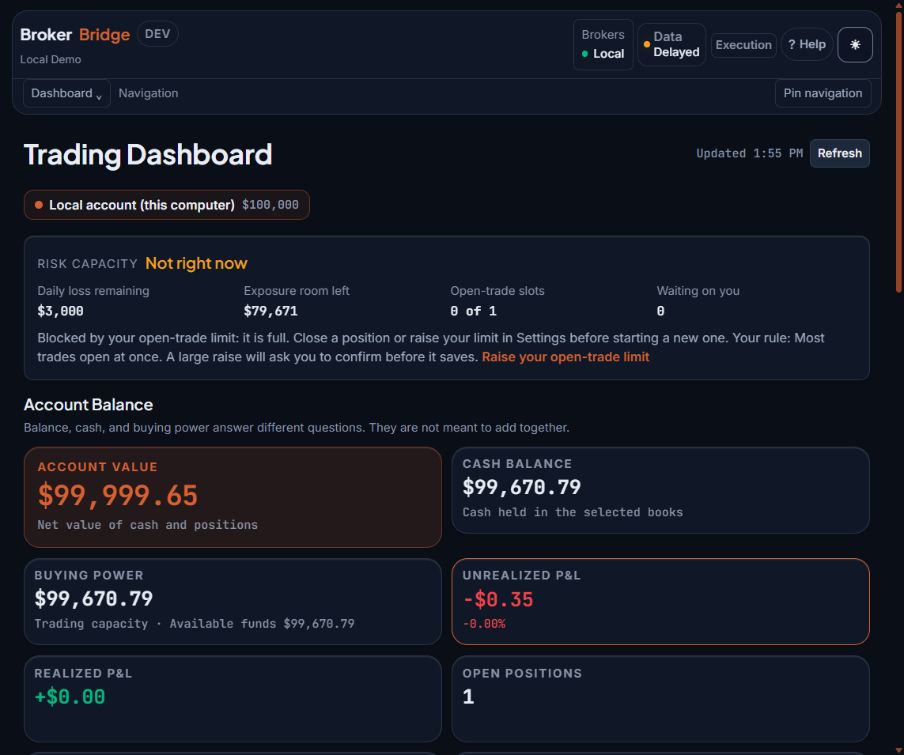
- Open Positions shows a count of 1 after this simulated fill. Scroll farther down to inspect the holding row and its quantity.
- Local account (this computer) identifies the account included in these totals. Match it to the order result.
- Unrealized P&L changes while a holding is open. A balance summary does not replace checking the actual holding and its exit orders.
Open Dashboard → Open Positions
Locate the investment and account. Read quantity, available prices, and profit/loss. Expand the row for details.
You should see: An actual holding with account context.
If you get stuck: For an absent submitted order, inspect its status: waiting, refused, partially filled, or reconciling.
Check exit evidence
Read stop/target information and any Exit proof or missing-protection message. Compare with the broker's working orders when connected.
You should see: You know whether protection is working, missing, or uncertain.
If you get stuck: A written stop price does not prove a working protective order.
Keep the account context consistent
Match account, symbol, and exact contract across the plan, broker, Dashboard, and Journal.
You should see: The quantity and identity describe the same holding.
If you get stuck: The same symbol can appear in multiple accounts.
- Open Dashboard (in the desktop app)
Cancel an instruction; close a holding
Cancelling stops a working instruction's remaining quantity; it does not undo earlier fills. Closing requests an opposite transaction to reduce or remove a holding. A close order can also wait, partially fill, or fail.
For cancellation, verify order identity, account, remainder, and purpose. Cancelling a protective stop can leave a position unprotected. For closing, verify the holding and quantity, then read the confirmation.
Check resulting status and held quantity after either action. Sending successfully is not proof of completion. After a full close, confirm the quantity is no longer held and inspect remaining related orders.
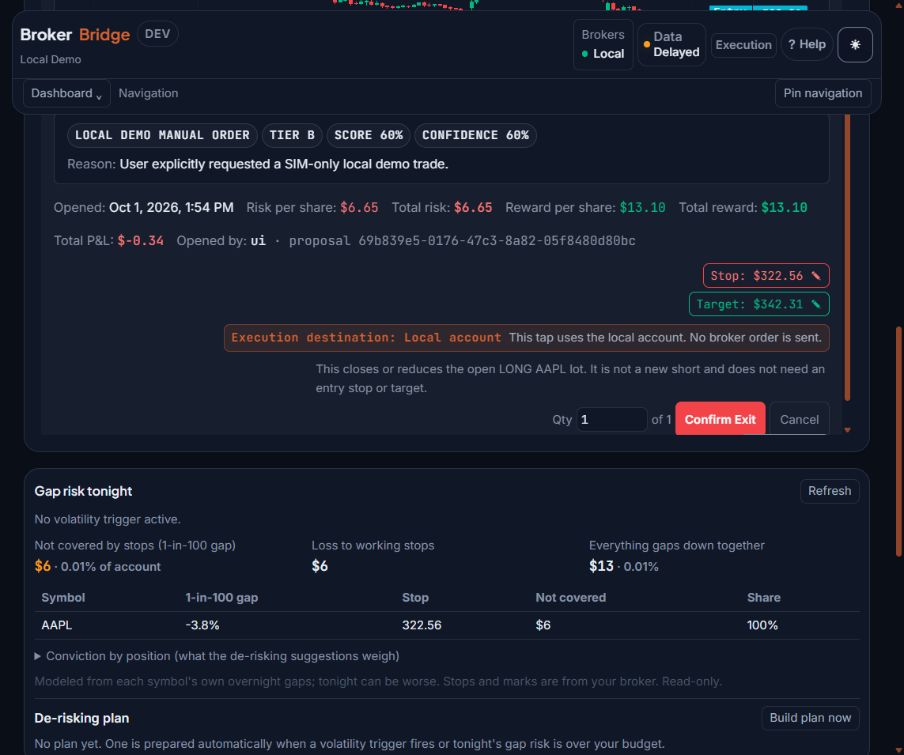
- Execution destination says Local account and that no broker order is sent. Verify your own destination; do not infer it from this picture.
- Close quantity is the amount to reduce. The test holding contained one share.
- Confirm exit requests the close. Verify the resulting quantity and any remaining orders afterward; the button click alone is not proof of a fill.
Confirm the position is closed
After requesting an exit, return to Dashboard for the same account. Confirm that the holding quantity has reached zero, then inspect the order result and any remaining exit orders. Journal should show the completed trade with entry, exit and realized profit or loss. A submitted exit or a success message alone does not establish that you are flat.
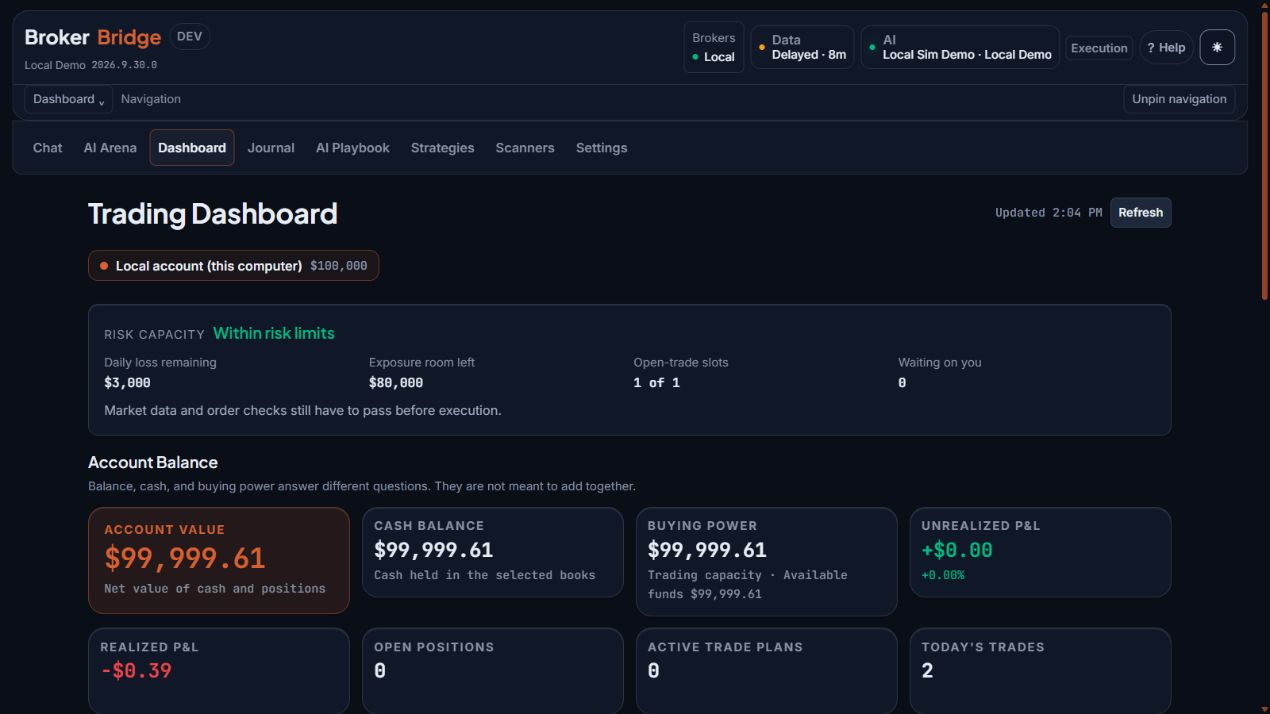
- Open Positions is now 0 in this isolated test account.
- Realized P&L shows -$0.39 for the completed simulation; unrealized P&L is zero.
- Today’s Trades is an activity counter. Use completed Journal records to count closed trades.
If you cannot tell whether it went through
- Stop repeating the submission. Note the time, account, symbol, quantity, and any order identifier.
- Read the card's recovery message and allow any stated reconciliation to finish. Check the plan's status in Chat → Plans or Dashboard → Trade Plans, and refresh after connectivity returns.
- For a connected broker, inspect that broker's order and position views for the exact account. A network timeout can happen after the broker accepted an order.
- If evidence still conflicts, use the support-report tools with the exact details. Say “outcome unconfirmed” instead of assuming failure or success.
- At the end of a session, review open holdings, working orders, conditional plans, and active schedules. Closing the app is not confirmation that any of them stopped.
Continue in the website manual
These online references extend this lesson with existing setup instructions and technical detail. They need an internet connection. The downloadable guide keeps all beginner lessons available offline.
Check your understanding
Practice questions only. Answers do not change accounts, orders, or permissions.