Reference · 7 minute read
Get unstuck: common questions and recovery steps
Find the next step for connection problems, blocked approvals, uncertain orders, empty results, and missing history.
Start with the visible message
Note which screen you are on, the selected account, and the exact message. Separate four questions: can the app reach the AI provider; can it reach the broker; is the requested action permitted; and is current data available? A failure in one does not prove all four failed.
- Read the message beside the disabled control as well as any temporary notification.
- Keep a note of the time, action, account mode, and result. This makes an intermittent problem easier to explain.
- If you might already have sent an order, use the uncertain-order steps below before retrying.
- After changing a setting, wait for its saved confirmation and recheck its state. Editing a field alone does not establish a saved connection.
Chat cannot answer or a model is unavailable
Before you start: Open Settings → Models & Credits and keep the exact error message available. Never include an API key in a support report.
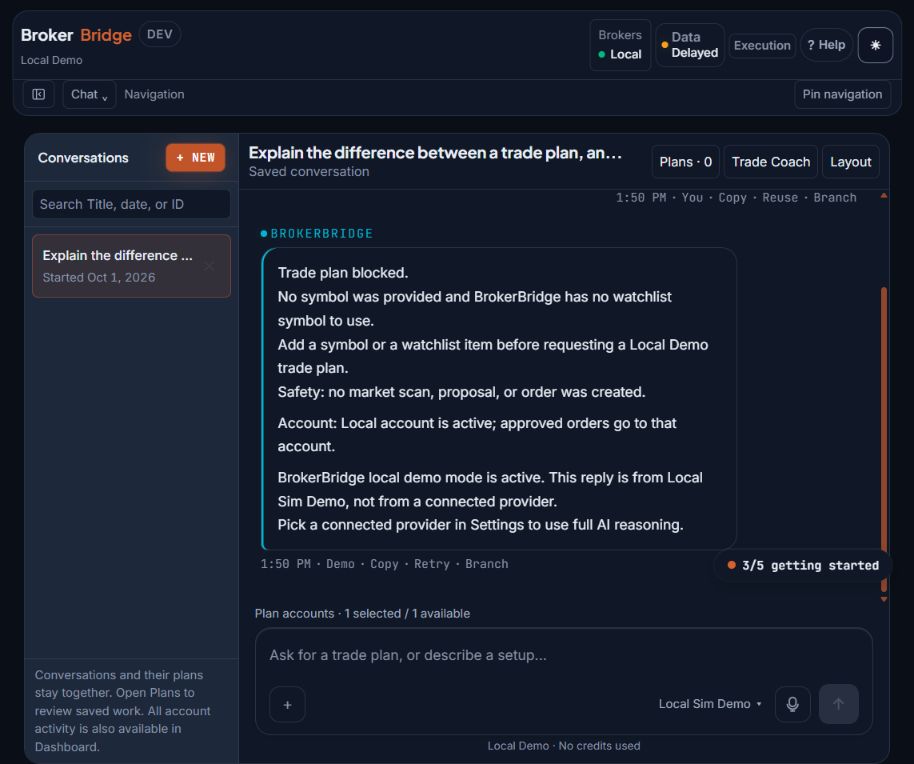
- Check the model: this reply came from Local Demo, not a connected AI provider.
- A workflow message does not mean you must place a trade. Read the glossary or change to an available connected model for open-ended questions.
- The reply states that no order was created. When an action outcome is uncertain, check orders and holdings before retrying.
Check Models & Credits
Read the selected provider/model, connection state, access verification, and any credit or provider-limit message.
You should see: The problem is identified as access, sign-in, credits, limits, unsupported input, or another specific failure.
If you get stuck: Do not paste credentials into Chat or a problem report. Use the dedicated connection controls.
Use the recovery for that cause
Complete sign-in, retry access verification, or choose an available compatible model as appropriate. For an attachment, check Vision or PDF support separately.
You should see: The provider reports readiness and a small ordinary text request receives a response.
If you get stuck: If Local Demo is selected, open-ended research is not available through an AI model. Use its supported local workflow or connect a verified model when available.
- Open Models & Credits (in the desktop app)
The broker is disconnected, or account identity is unclear
Open Broker Accounts and inspect the selected trading account. For Interactive Brokers, ensure the selected IB Gateway or Trader Workstation application is open and signed in. Compare its API Socket port with the preset or manual settings, then use the connection test. Read the account and mode returned by the test.
For NinjaTrader, the badge must read NT8 connected and the bound account name must match your intention. UNVERIFIED means NinjaTrader or its link is not running or not installed; see the setup guide. A connected application can contain multiple accounts. If the account name, local/paper/simulated/live label, or plan destination conflicts with your intention, resolve that mismatch before any order.
If balances load but orders are refused, inspect the reported permission or read-only status. On Interactive Brokers, Read-Only API must be off in the IBKR application before any order can be sent. A successful account read is not a successful order-permission test. Do not remove a protection or change an account mode simply because a connection indicator is green.
- Open Broker Accounts (in the desktop app)
- Read the setup guide →
Approve is unavailable, or the plan is refused
| Message concerns… | Next step |
|---|---|
| “Complete trading setup first” or a named setup step | Follow the link in the message. It names what is missing: account setup, a selected account, the risk disclosure (trading agreement), AI access, or a broker that is not ready. Ticking checklist items does not unlock approval. |
| Activation or access | Connecting a broker may need a Desktop Activation Code from your dashboard at brokerbridge.tech. The Local account needs none. |
| Account or destination | Verify this plan's account in Broker Accounts and read its current destination. |
| Missing quantity or prices | Review the plan and supply the missing details through its supported edit or draft workflow. |
| Stale quotes or missing market data | Use the displayed refresh/review action and check the data source. Resolve any subscription message at the provider. |
| A risk limit | Read which limit failed and why. Reassess the plan rather than automatically increasing the limit. |
| An expired or changed plan | Refresh or request a new draft, then review its current terms. |
| Real-money confirmation | Read the destination and permission text. The beginner practice walkthrough does not require live authorization. |
| Execution paused or another safety restriction | Open Execution in the top bar to see why the restriction is active. Resuming execution is a separate, deliberate decision. |
An order was sent, but I cannot tell what happened
Before you start: Stop sending new instructions for this order while you determine its outcome. Keep the original account and order details available.
A limit order can remain working because the market has not offered an acceptable execution. A partial fill leaves a holding and may leave a remaining order. Cancelling that remainder does not close the filled portion. Use the order guide before changing either one.
Do not submit it again yet
Keep the account, time, symbol, quantity, and order identifier. Read whether the app is waiting, working, partially filled, or reconciling.
You should see: You avoid treating a timeout as an automatic failure.
If you get stuck: A second request can become a second order if the first was accepted.
Check both orders and holdings
Inspect the plan's status in Chat → Plans or Dashboard → Trade Plans, and the holding in Dashboard → Open Positions. For broker trading, inspect the broker application's orders and positions for the exact account and contract. Refresh after connectivity recovers.
You should see: A confirmed status or actual holding explains the outcome.
If you get stuck: If sources disagree, retain the details and report the outcome as unconfirmed. An empty filtered view is not cancellation proof.
My scanner, playbook, or Arena shows nothing
First distinguish no match from no successful run. In Scanners, inspect the run result, skipped symbols, data source, and error message. In AI Playbook, inspect Activity, source freshness, the selected output behavior, and the schedule. In Arena, inspect the run state, decisions, competitor availability, and any model-access message.
A research-only playbook may produce a brief without a trade plan. A saved scanner waits for Run unless another explicit workflow schedules work. An Arena competitor may choose to hold cash. Those outcomes differ from unavailable data or a failed check. Use the explanation accompanying the result before changing rules.
- Open Playbook Activity (in the desktop app)
- Learn Scanners and Arena →
A trade is missing from Journal
- Select the correct Journal account and include the intended Source.
- Widen Range and check Timezone. Confirm Start is on or before End.
- Use Ledger to inspect underlying history; use Dashboard for a holding that remains open.
- Read collection coverage and import warnings. A source error or incomplete coverage is different from no activity.
- Compare the exact account, order identifier, and fill time with the broker record. Report the missing record with those details when recovery does not resolve it.
- Open Journal Ledger (in the desktop app)
Make a problem easy to investigate
Use Help → Report a problem in the top bar, and Settings → Advanced → Diagnostics. Include what you were trying to do, the smallest repeatable steps, what you expected, what appeared instead, the time and timezone, and the app version when shown. For account-specific problems, include enough account context to distinguish local, paper/simulated, and live activity; conceal unnecessary private account details in shared screenshots.
- Quote the exact error instead of only saying “it does not work.”
- For uncertain orders, include the order identifier and whether the broker reports a working order or holding.
- For missing data, include the symbol, source, timeframe, and timestamp shown.
- Do not include passwords, API keys, sign-in codes, or private authentication links.
- Open Diagnostics (in the desktop app)
Continue in the website manual
These online references extend this lesson with existing setup instructions and technical detail. They need an internet connection. The downloadable guide keeps all beginner lessons available offline.