Start here · 8 minute read
Your first hour with BrokerBridge
Follow one beginner path: open Local, understand a plan, read its risk, and find the outcome. No order is required.
What BrokerBridge helps you do
BrokerBridge combines research, trade planning, connected trading accounts, and a trading journal. Ask questions in Chat, turn an idea into a plan, review where an order would go, and examine the result. This guide assumes no trading knowledge.
A trade is a purchase or sale. An order requests that purchase or sale. A position is what you hold after an order fills. A plan describes a possible trade; it does not prove anything was bought or sold.
Your first goal is to explain one plan and locate its result. You can complete the research and review steps without placing an order. Profit is not the test of whether you learned the workflow.
Your first hour: five small steps
Before you start: Use the desktop app with Local selected. Reading the fictional example requires no model, broker, or order. A saved current-market draft requires a connected AI model and available data.
Work at your own pace; the times below are a suggested practice schedule, not a deadline. The linked lessons supply the detail for each step. Stay with Local and leave order submission optional.
0–10 minutes: open Local
At first launch, choose Start without a broker. In the app, find the selected destination and confirm it says Local. Local uses simulated money; it is separate from an IBKR paper account or a NinjaTrader simulation account.
You should see: You can point to Local and explain that it uses no real money.
If you get stuck: If the destination is live, unknown, or a different account, stop and follow Setup and account destinations before continuing.
10–20 minutes: learn the four stages
Read the plan → order → position → closed-trade diagram below. Open Chat, Dashboard, and Journal to find where each stage is recorded. Empty lists are normal on a new account.
You should see: You can explain why a plan or a submitted order does not prove you own anything.
If you get stuck: Use Trading words in plain English whenever a term is unfamiliar.
20–35 minutes: read one practice plan
Open Your first practice walkthrough. Begin with its fictional example, then use its exact draft-only prompt if an AI model is connected. With Local Demo, use the fictional example: that mode produces an outline but does not save a plan card.
You should see: You can identify the investment, buy or sell direction, quantity, entry, stop, target, and destination.
If you get stuck: Do not type a buy or sell instruction merely to see what it does. On Local or paper accounts, an explicit trade-now request can send an order without another approval click.
35–45 minutes: explain the risk in dollars
Read Understand risk, sizing, and protective exits. Explain the example quantity and planned loss in your own words. Distinguish money allocated to a position from money that could be lost.
You should see: You understand that a stop or planned loss cannot guarantee a maximum loss.
If you get stuck: If you cannot explain the numbers, ask for an explanation only and do not submit an order.
45–60 minutes: find the outcome and write a note
If you created a saved plan, find it in Chat → Plans or Dashboard → Trade Plans. If you used the fictional example, write down what each stage would mean; there is no saved plan to find. If you choose the optional simulated-order exercise, follow the order status and filled quantity before checking the position and, after closing, Journal.
You should see: You can distinguish a pending order, a holding, and a closed trade. You can complete this first hour without placing any order.
If you get stuck: An uncertain result is not a reason to submit again. Use the order-recovery lesson and reconcile the existing order first.
Plan → order → position → closed trade
This is a learning diagram, not an instruction to trade. Each arrow needs a real event: sending an order, receiving a fill, then filling an exit. An order may be rejected, cancelled, or only partly filled; it does not always reach the next stage.
- 1. Plan
A description of a possible trade. Nothing has necessarily been bought or sold.
Where to check: Chat → Plans; Dashboard → Trade Plans
- 2. Order
A request to buy or sell has been sent. Pending is not filled.
Where to check: The plan/order status and its destination account; check filled quantity
- 3. Position (holding)
A fill has created a holding. A partial fill can leave both a position and an open order.
Where to check: Dashboard positions for the same account
- 4. Closed trade
An exit fill has closed the holding. Cancelling a pending order does not close an existing position.
Where to check: Confirm the position is closed, then review Journal for the same account and dates
Where to go for each job
Start with Chat, Dashboard, Journal, and Settings. The other screens become useful once you understand a single trade. Available controls can vary with your connected providers, broker, account permissions, and installation.
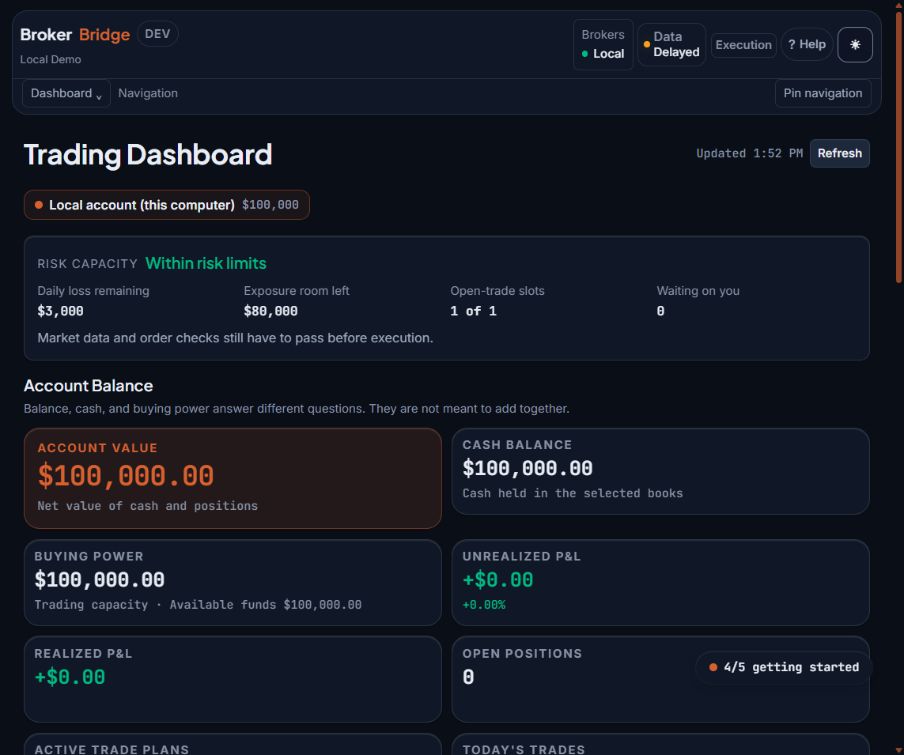
- The account selection and Local status tell you which account the totals describe.
- Open Positions shows actual holdings. Empty is the expected state before any fill.
- Trade Plans is farther down the Dashboard. A saved plan and a holding are different records.
| Screen | Use it when you want to… |
|---|---|
| Chat | Ask a question, research an idea, explain a chart, or request a trade plan. Open Plans beside the conversation heading to find saved plans. |
| Dashboard | See account context, open positions, the Trade Plans list, and the risk information available for your connected account. |
| AI Playbook | Save an idea with its sources and rules, review signals, and approve the plans your playbooks create (Pending Plans). |
| Strategies | Define reusable trading rules and review whether a strategy is saved or running. |
| Scanners | Run saved checks over a group of symbols and inspect matches and missing data. |
| Arena | Compare AI models or investor methods and inspect the evidence behind their decisions. |
| Journal | Review completed trades, history, notes, and results for selected accounts and dates. |
| Settings | Manage Models & Credits, Broker Accounts, Risk & Trading, Data & Sources, and help. |
- Open Chat (in the desktop app)
- Open Dashboard (in the desktop app)
- Open Journal (in the desktop app)
Research requests and trade instructions do different things
Use clear learning language: explain, research, or draft for review. Add “Do not place, approve, or change any order” when you want an explanation only. That sentence also stops Chat from saving a plan; to save one for review, use the wording in the first practice walkthrough.
An instruction to trade now can act straight away. On an account that does not use real money (Local, IBKR Paper or NT8 Sim), a plain sentence such as “buy 10 shares of [symbol]” can be approved and sent in the same reply, with no Approve button. If you leave out the number of shares, BrokerBridge may ask how many; answering with a number, or “yes” to its suggestion, sends the order. Wording such as “maybe” or “should I” saves a plan for review instead.
On a live account (IBKR Live or NT8 Live), the first order waits for you to type LIVE on its card. After that, later trade-now messages in the same chat for the same account can be sent without typing LIVE again, for up to 8 hours. Saved strategies and playbooks with trading permission can also act later. Read the account and permission text carefully.
Continue in the website manual
These online references extend this lesson with existing setup instructions and technical detail. They need an internet connection. The downloadable guide keeps all beginner lessons available offline.
Check your understanding
Practice questions only. Answers do not change accounts, orders, or permissions.