Use BrokerBridge · 5 minute read
Use your Journal to learn from decisions
Find the right account history, add useful reflections, and understand what performance views can and cannot show.
Choose the history you mean to review
Before you start: Use this after a real completed simulated or live trade. The fictional walkthrough has no account record to find.
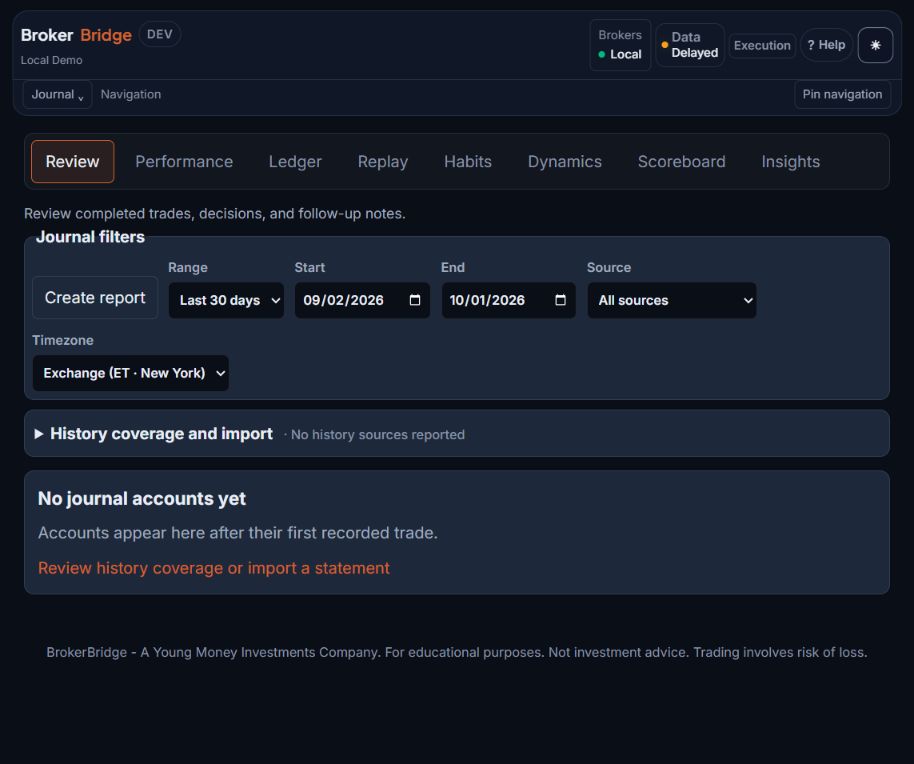
- Range and dates select the period to inspect; Source and Timezone affect what is shown.
- No journal accounts yet is expected before the first recorded trade. Reading the fictional example creates no history.
- History coverage and import explains missing data. Check coverage and account context before treating an empty view as proof that nothing happened.
Open Journal and check Journal accounts
Select the relevant account or accounts. Match the destination used by the trade you are reviewing. Journal account selection is a history filter, not an instruction to move holdings or change execution destinations.
You should see: The selected account names or identifiers are visible.
If you get stuck: If no accounts are loaded, use the page's recovery message. Do not interpret a loading error as zero trades.
Set Range, Source, and Timezone
Choose the date window, whether to include activity outside BrokerBridge, and the timezone used for dates. Start and End let you define a custom range.
You should see: All views refer to the intended period and source.
If you get stuck: A trade near midnight can fall on a different displayed date in another timezone. Widen the range when locating a specific record.
Open Ledger for the underlying record
Find the symbol and expand the trade for the recorded quantities, prices, outcome, and available notes. Compare account and timestamps before drawing a conclusion.
You should see: You can trace the review to a particular recorded trade.
If you get stuck: An entry still held open may not yet be a completed trade. Check Dashboard and the broker's order history when needed.
- Open Journal Ledger (in the desktop app)
Choose the view that answers your question
An empty view may simply lack the type or amount of history it needs. Start with Ledger to establish what records exist, then use the more interpretive views. A generated observation is a hypothesis to check against the underlying records.
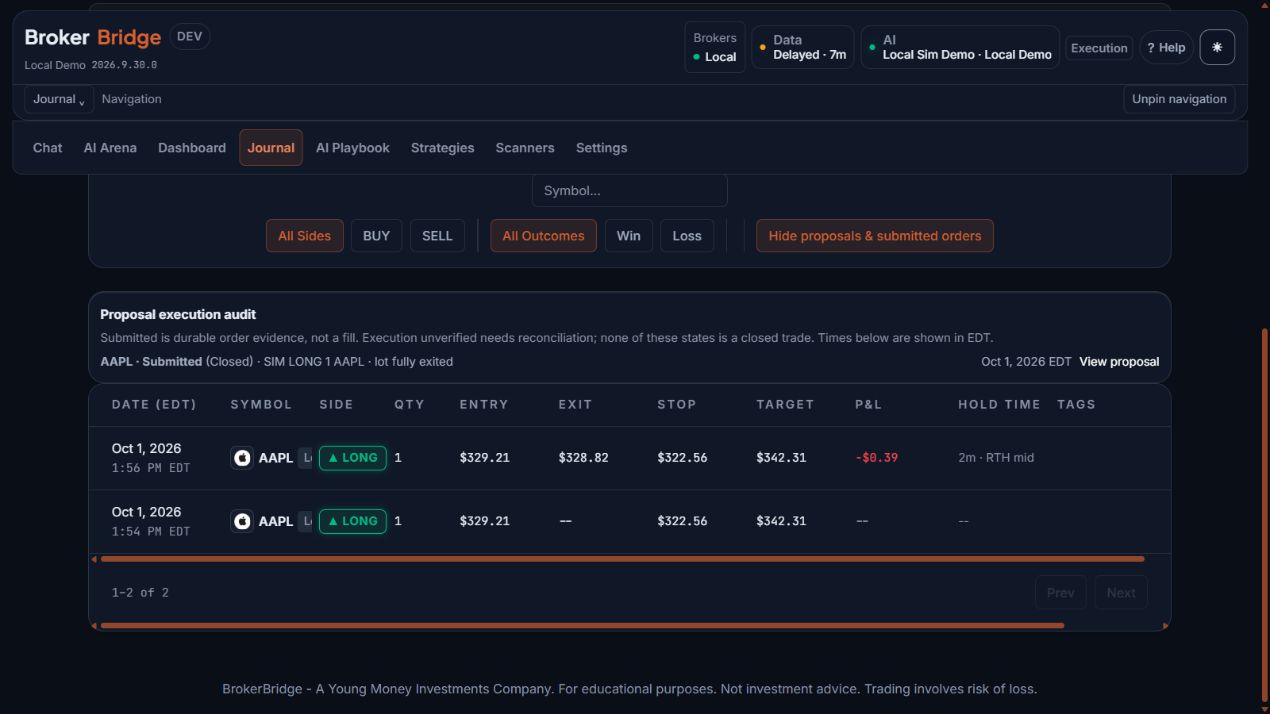
- The completed row has both ENTRY and EXIT values and a recorded P&L of -$0.39.
- The earlier submitted-order row has no exit or P&L. Two activity rows do not mean two completed trades.
- Match the symbol, account, quantity and dates before drawing a conclusion. Use the row details and horizontal scroll for fields that are not visible.
| View | What it helps you inspect |
|---|---|
| Review | Completed trades, decisions, follow-up notes, and the review inbox. |
| Performance | Results for the selected accounts and dates. |
| Ledger | Underlying trade history and exact recorded values. |
| Replay | Frozen plans compared with their recorded later outcomes. |
| Habits | Recurring execution behavior in the selected history. |
| Dynamics | How recorded outcomes vary across conditions and timing. |
| Scoreboard | Account comparisons using the selected history. |
| Insights | Broader pattern diagnosis and strategy attribution; read its displayed scope. |
Write a useful review in a few sentences
Before you start: Select a completed trade in Journal with the matching account and date range. For the fictional exercise, write your practice note outside trade records.
Record your reasoning separately from the result. A well-followed plan can lose; an impulsive decision can win. Reviewing only the money made or lost hides the behavior you want to understand.
Add a trade note and useful tags
Open the relevant history row and use Trade notes and Add tag where available. Use consistent labels so similar decisions can be found later.
You should see: Your note and tags remain visible when you revisit the record.
If you get stuck: Keep your text if a save fails, resolve the error, and verify persistence after retrying.
Finish with End Session Review
In Review, use Session summary, the trading day, optional tags, and Next session reminder. Write one concrete lesson even if you placed no trades.
You should see: The saved review appears in Recent session reviews.
If you get stuck: A written intention to avoid a trade is worth recording even when there is no completed trade to annotate.
- Intention: what did I expect, and which evidence supported it at the time?
- Plan: what were the entry, planned exit, target, quantity, and intended holding period?
- Execution: what actually filled, at which price, and how did it differ from the plan?
- Process: did I follow my own rules, and what new information appeared?
- Next time: what one specific question or behavior should I review before another trade?
- Open Journal Review (in the desktop app)
- See the fictional example and practice note →
Check coverage before interpreting a result
Read available history-source and coverage messages. Incomplete collection or an import warning can explain missing trades. If an import tool is available, inspect its account names, row count, and warnings in the preview before using Import history. Imported history is evidence for review, not authority to change an account's orders.
Keep local, broker paper/simulated, and live results identifiable. Compare equal date ranges and like-for-like accounts. A profit number may depend on whether fees and open positions are included; read the view's definitions. A short run of good results does not establish a durable trading advantage.
When using reporting or export controls, verify the selected accounts and filters before creating the report. Check that the resulting file contains the intended period and records. Journal feedback can improve the quality of your review process; it does not guarantee improved returns.
Continue in the website manual
Use the Journal lessons above for everyday review. The website also preserves the technical data-file and CSV reference for people who need it; follow the format actually offered by your installed version.
Check your understanding
Practice questions only. Answers do not change accounts, orders, or permissions.