Use BrokerBridge · 8 minute read
What can Chat do? Explain, draft, or act
Recognize which messages ask for information, which save a plan, and which can submit or change an order.
Before you send: choose the effect you intend
Before you start: Identify the selected account and model. Read the whole message, including any earlier request you are confirming. If the account is unknown, do not send a trading instruction.
Chat can both answer questions and perform account actions. An explicit instruction to trade on Local or paper can submit an order without a separate approval click, if the required checks pass. Read the examples below before trying action language.
For this lesson, use the explanation or draft-only wording. The action example is shown only so you can recognize it; it has no copy button.
Local Demo is not a general-purpose AI model. A question about a trading term may receive a fixed workflow response or a missing-symbol message instead of an explanation. Use the glossary and fictional walkthrough, or connect a supported model in Models & Credits. Do not add a buy instruction just to get past that response.
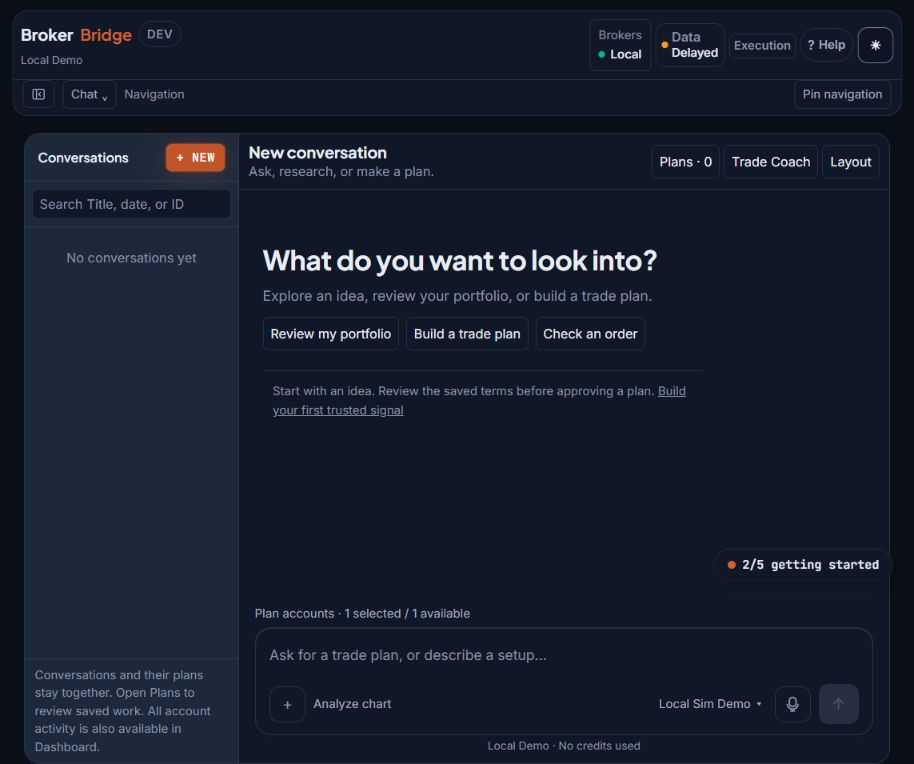
- Plans opens saved plans for this conversation. A count of zero means this conversation has none.
- Plan accounts identifies which accounts are included. Confirm Local before using the optional simulation exercise.
- The message box is where you choose the action you intend. Read the request-type examples below before sending.
- Local Demo at the bottom means no connected AI model. Use the written lessons for explanations, or connect an available model.
| Your purpose | Example wording | Expected result and where to check |
|---|---|---|
| Explain only | Explain the difference between an order and a position. Do not create, approve, place, cancel, or modify any order. | An explanation in Chat. No plan or trading action is requested. |
| Save a draft | Save one draft stock trade plan for [symbol] for my review. Do not approve or execute it. | With a connected model and sufficient data, look for a saved card in Chat → Plans or Dashboard → Trade Plans. Local Demo may return only an outline. |
| Trade now — can submit an order | “Buy 10 shares of [symbol] now.” Recognition example only; do not send it as a learning test. | This requests execution. On Local or paper it can submit without another approval click. Check the order result, filled quantity and account; an acknowledgment is not a fill. |
Say whether you want to learn, draft, or act
Context matters. Replies such as “yes” or “go ahead” can confirm an action the app just described; for example, answering “yes” when BrokerBridge asks how many shares sends the suggested order. Read the question you are answering. For learning, spell out that you want an explanation only rather than using a short confirmation whose scope is unclear.
| Intent | How to express it | What it means |
|---|---|---|
| Learn | Explain this term or compare these ideas. Do not change anything. | Ask for information and explanation. |
| Research | Assess the evidence and reasons for and against this idea. Do not place or approve orders. | Ask for analysis, including uncertainty and sources. |
| Draft | Create a saved plan for my review only. Do not approve or execute it. | Ask for a reviewable plan; inspect its actual card afterward. |
| Act now | An explicit instruction to buy, sell, close, or cancel now, such as “buy 10 shares of [symbol]”. | Can be sent in the same reply on Local, IBKR Paper, or NT8 Sim, with no Approve button. A live account waits for typed LIVE the first time. Use only when you intend the identified account and action. |
- Open Chat (in the desktop app)
After a reply: check what actually happened
Before you start: Keep the original message and reply available. Identify whether you requested information, a draft, or an account action.
If you asked for an explanation
Read the answer and ask about anything unclear. Do not reply “yes” or “go ahead” to an action you do not intend.
You should see: An answer you can explain in your own words.
If you get stuck: If the reply proposes an action, state that you only want an explanation; check any reported account changes.
If you asked for a draft
Look for the saved plan card and read its status, terms and destination. Keep it for review or decline it.
You should see: A saved draft, or a clear limitation. A paragraph of analysis is not proof a card was saved.
If you get stuck: With Local Demo, use the fictional reading exercise. Otherwise follow the first-draft recovery steps.
If an action was requested
Check the exact account, order status, filled quantity and holding. If the outcome is uncertain, inspect the existing order before doing anything else.
You should see: Evidence of what the destination accepted and filled, or a refusal with a reason.
If you get stuck: Do not send the instruction again just because the reply is slow, missing or unclear. A retry could duplicate an order.
Give the model enough context to be useful
Replace placeholders before sending. If a requested fact is unavailable, an honest missing-data answer is useful. Do not turn a confident writing style into a substitute for a cited source or a current quote.
- State your experience: “I am a beginner; define terms as you use them.”
- State the subject: a symbol, an existing plan, a specific position, or an attached document.
- State the time horizon: today's session and a multiweek idea ask different questions.
- State the output you want: explanation, comparison, checklist, draft plan, or journal reflection.
- Ask for sources, timestamps, missing information, and evidence against the idea.
- State the action boundary: review only, without placing or changing orders.
Use charts and documents with the right model
Before you start: Have a chart or document you are allowed to share. Remove account numbers, credentials and other private details before upload.
Check model capabilities
In Models & Credits, inspect the selected model's capability information before uploading an image or PDF. Vision and PDF support are separate from basic text chat.
You should see: The model supports the kind of input you intend to use.
If you get stuck: If support is unverified, choose a compatible available model or supply relevant text instead.
Add the material and ask a specific question
Use the + control in the Chat input for the attachment or research options provided. With a chart, name the symbol, timeframe, and screenshot time if known; with a document, identify the section you want explained.
You should see: The attachment is visible with the message and the response addresses its content.
If you get stuck: A chart screenshot is a historical picture. If its date or price scale is unreadable, request clarification instead of a current-market trade.
Verify the important details
Compare any extracted numbers, dates, and quoted claims with the original material. Ask which parts came from the attachment and which came from other sources.
You should see: You can trace the explanation to evidence.
If you get stuck: If the model could not read the attachment, its answer should not be treated as a review of that file.
- Open Models & Credits (in the desktop app)
Understand permission that can last beyond one message
After you type LIVE once, later trade-now messages in that same chat, on that same live account, can be sent without asking again for up to 8 hours. Account, risk, and other checks still run. The permission ends sooner if you pause execution (Execution in the top bar, then Pause new execution), restart BrokerBridge, or change the selected account, and it does not carry into a new chat. Do research in a separate chat, and do not rely on a confirmation box to catch an unintended instruction.
Saved strategy permissions and other enabled trading features have their own scope. Reviewing an explanation does not tell you which unrelated features are already running. Before experimenting with action language, check your active trading controls and use the draft-only wording in this guide.
Continue in the website manual
These online references extend this lesson with existing setup instructions and technical detail. They need an internet connection. The downloadable guide keeps all beginner lessons available offline.
Check your understanding
Practice questions only. Answers do not change accounts, orders, or permissions.